

First of all, regularly update everything, delete unused plugins and enable two-factor login, install a firewall, run automatic offsite WordPress backups, and restrict user roles. Almost all WordPress exploits start with one outdated plugin, so patch quickly. If you have an exploit in place, isolate the site, restore a fresh backup and change all passwords.
Here is a scary thing. Right now your website is scanned by bots, not a single hacker in a hoodie, but thousands of automated scripts that never sleep. It’s happened to me dozen times. Someone built a site for a local business and forgets about it. After six months Google starts flagging it as “deceptive” and sales fall flat overnight.
Good news are – most WordPress hacks are mundane and preventable. You don’t have to know computer science, just establish a routine. That is what you’ll find in this guide: a detailed explanation of WordPress security vulnerabilities, tips on WordPress security basics, WordPress backup and what to do in case your site gets compromised.
Let’s begin.
Why Is WordPress So Big Target in 2027?
WordPress powers a huge share of the web. That’s the simple answer. Popular software attracts attackers the way a busy parking lot attracts thieves. But the real story is more specific. WordPress core is actually quite solid. The trouble lives in the add-ons. According to Patchstack’s State of WordPress Security in 2026, researchers logged 11,334 new vulnerabilities in 2025. That’s a 42% jump from the year before. About 91% of them were in plugins.
Here’s the part that should make you sit up. The same report found that the median time to first mass exploitation was five hours for heavily targeted flaws.
Five hours. That’s less than a workday. The 2026 Verizon Data Breach Investigations Report adds more weight. For the first time in 19 years, exploited vulnerabilities became the top way attackers got in, at 31% of breaches. You can read the Verizon DBIR here. What does this mean for you? The old advice of “update when you remember” is dead. Speed matters now.
Most people get this wrong: they think hackers only target big brands. In reality, bots hit small sites because small sites are easier.
What Are the Most Common WordPress Security Vulnerabilities?
You might be wondering where attackers actually get in. Here are the usual suspects, ranked by how often I see them cause damage.
1. Outdated or Abandoned Plugins
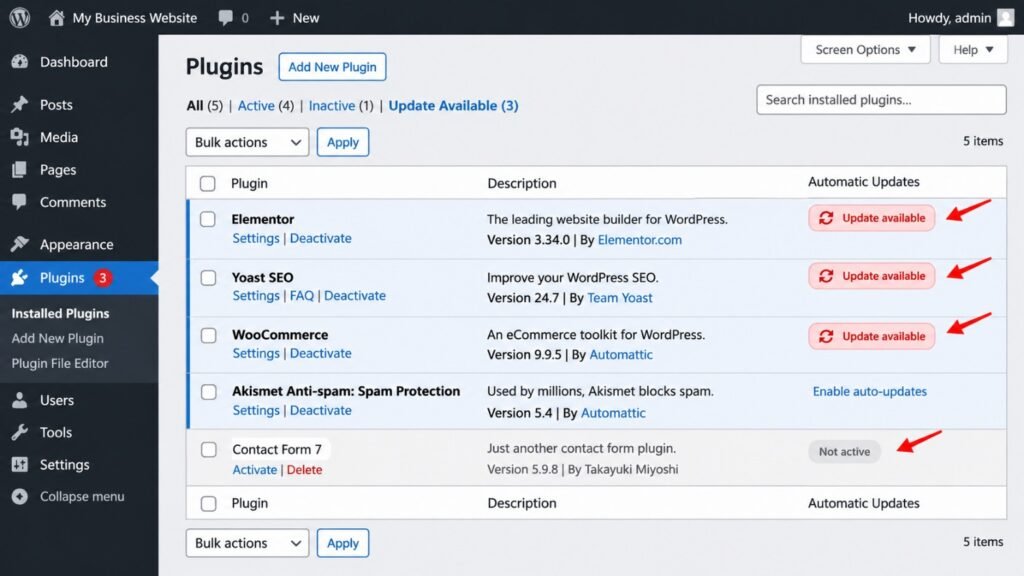
This is the number one problem. A plugin gets a security flaw. The developer patches it. You never click update.
Abandoned plugins are worse. No developer means no patch, ever. Patchstack’s data also showed thousands of plugins and themes pulled from the WordPress repository over the years for unpatched issues.
2. Weak Passwords and No Two-Factor Login
“Admin123” still works on more sites than you’d believe. Bots run through leaked password lists all day. This is called credential stuffing.
3. Nulled Themes and Pirated Plugins
Free copies of premium themes sound great. They often ship with hidden backdoors. You save $59 and lose your whole site.
4. Cross-Site Scripting and SQL Injection
The OWASP Top Ten lists the most critical web application risks. Injection and broken access control show up again and again in WordPress plugins. A badly coded form can hand attackers your database.
5. Poor Hosting Setup
Cheap shared hosting can put dozens of sites on one server. If one neighbor gets infected, yours can follow. Wrong file permissions make it worse.
6. Too Many Admin Accounts
Every extra admin is another door. Former freelancers with live logins are a classic problem.
A Real Example: The Dental Clinic That Almost Lost Everything
Consider a dental clinic in Plano, Texas. They ran a booking form plugin on their site. It hadn’t been updated in 11 months. A bot found a known flaw and uploaded a malicious file. The site started redirecting patients to a fake pharmacy page. It took 19 days before anyone noticed.
The damage added up fast:
- Google traffic dropped 71% in three weeks.
- 43 appointment requests went missing.
- $3,800 went to cleanup and a security consultant.
- Because the form collected patient details, they had to run a HIPAA risk review.
The fix that would’ve prevented it? A $0 update and a 10-minute weekly check.
Lesson learned: small neglect creates big bills.
How to Secure a WordPress Website: The Complete 17-Step Checklist
Now for the part you came for. Work through these in order. Don’t skip the boring ones. Want expert hands on this? Our team does it daily as part of professional WordPress development services.
Step 1: Keep Core, Plugins, and Themes Updated
Turn on auto-updates for minor core releases and trusted plugins. Check the rest weekly. The WordPress Developer Handbook on hardening explains the official approach.
Pro tip: Test big updates on a staging site first. I’ve watched an update break a checkout page on a Black Friday weekend. Not fun.
Step 2: Delete What You Don’t Use
Inactive plugins still count as attack surface. Delete them. Don’t just deactivate them. Aim for fewer than 20 plugins. Fewer is better.
Step 3: Use Strong, Unique Passwords
Use a password manager like Bitwarden or 1Password. Make passwords at least 16 characters. Never reuse them.
Step 4: Turn On Two-Factor Authentication (2FA)
This single step blocks most stolen-password attacks. Use an authenticator app. Avoid SMS where you can.
Step 5: Change the Default “admin” Username
If your username is “admin,” bots already have half your login. Create a new administrator with a unique name. Delete the old one.
Step 6: Limit Login Attempts
Allow five failed tries, then lock out the IP. Most security plugins include this. It stops brute-force attacks cold.
Step 7: Install an SSL Certificate and Force HTTPS
Most US hosts offer free Let’s Encrypt SSL. Force HTTPS sitewide. Google treats it as a trust signal, and it protects logins.
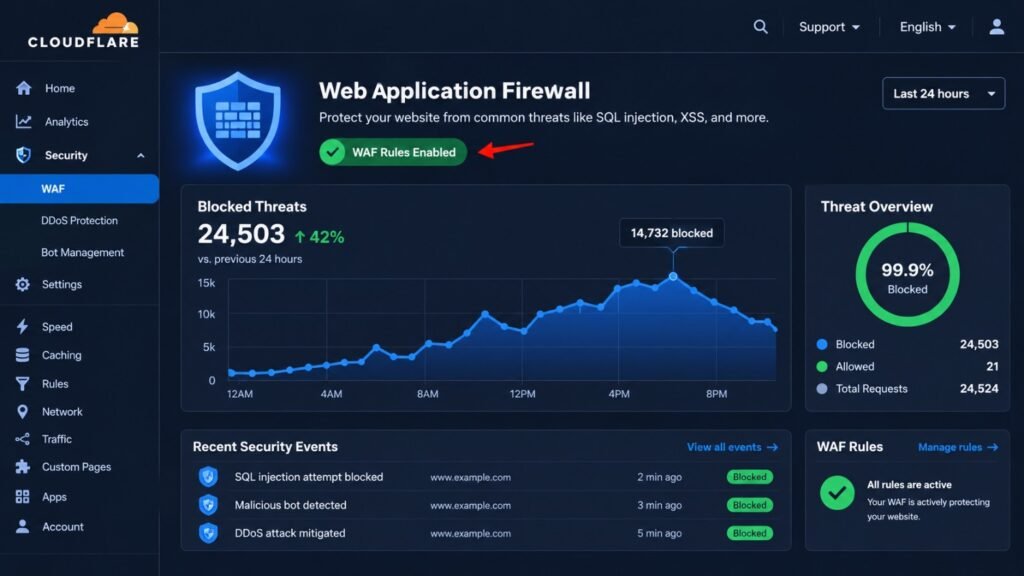
Step 8: Add a Web Application Firewall (WAF)
A firewall filters bad traffic before it reaches your site. Cloudflare’s guide on improving WordPress security explains why edge protection helps so much. Some tools also offer “virtual patching.” That blocks an exploit even before you update the plugin. With a five-hour exploitation window, that’s gold.
Step 9: Choose Secure Hosting
Look for isolated accounts, server-level malware scanning, and daily backups. Managed WordPress hosting costs more. It’s usually worth it for business sites.
Step 10: Set Correct File Permissions
Folders should be 755. Files should be 644. Lock down wp-config.php to 440 or 400 if your host allows.
Step 11: Disable File Editing in the Dashboard
Add this line to your wp-config.php file:
define(‘DISALLOW_FILE_EDIT’, true);
If an attacker gets in, they can’t rewrite your theme files from the editor.
Step 12: Protect wp-config.php and the .htaccess File
Move wp-config.php one level above your public folder if possible. Block direct access with server rules. The UBC guide to securing WordPress offers a solid university-grade checklist.
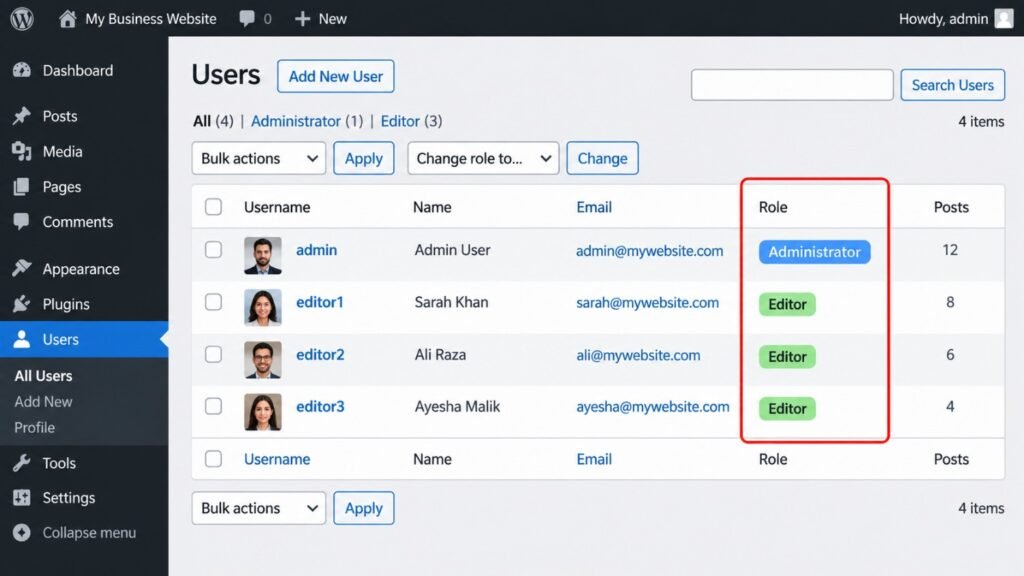
Step 13: Limit User Roles
Give people the lowest role that works. Writers don’t need Administrator. Review users every quarter.
Step 14: Change the Database Prefix and Secure Keys
Don’t use the default wp_ prefix on new installs. Refresh your security keys and salts. This logs everyone out and kills stolen sessions.
Step 15: Disable XML-RPC If You Don’t Need It
XML-RPC is an old feature. Attackers abuse it for brute-force attempts. Most sites don’t need it. Turn it off.
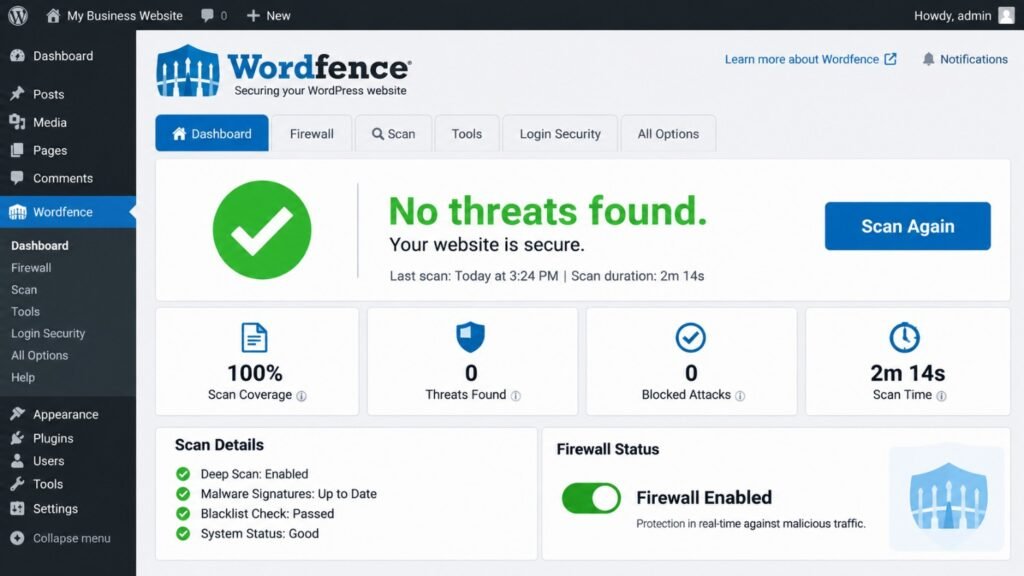
Step 16: Monitor Activity and File Changes
Use an activity log plugin. You want alerts when a new admin appears or a core file changes. Early detection saves weeks of pain.
Step 17: Schedule Regular Security Audits
Every quarter, scan for vulnerabilities, check users, and review plugins. Pair this with your technical SEO audit checklist. Security and SEO problems often show up together.
Which WordPress Security Plugin Is Best? (Comparison Table)
There’s no perfect plugin. Each has strengths. Here’s how the popular ones compare.
| Feature | Wordfence | Sucuri | Solid Security | Patchstack |
|---|---|---|---|---|
| Firewall (WAF) | Yes, endpoint-based | Yes, cloud-based | Basic | Yes, virtual patching |
| Malware Scanner | Strong | Strong | Moderate | Not primary focus |
| Malware Cleanup Included | Paid tiers | Yes, paid plans | Limited | No |
| 2FA | Yes (free) | Via add-on | Yes | No |
| Vulnerability Alerts | Yes | Limited | Yes | Excellent |
| Best For | All-in-one DIY | Hands-off cleanup | Beginners | Fast patch protection |
| Server Load | Medium to high | Low (cloud) | Low | Low |
My honest take: Don’t stack three security plugins. They conflict and slow your site. Pick one main plugin and add a cloud firewall.
How Much Does WordPress Security Cost in USD?
Prices change, so treat these as ballpark figures. Always check current pricing.
| Tool / Service | Typical Cost (USD) | Notes |
|---|---|---|
| Wordfence Free | $0 | Good starting point |
| Wordfence Premium | ~$119–$149/year | Real-time firewall rules |
| Sucuri Platform | ~$200+/year | Includes cleanup and CDN |
| Solid Security Pro | ~$99+/year | Beginner-friendly |
| Cloudflare Pro | ~$20–$25/month | Stronger WAF features |
| Managed WP Hosting | ~$25–$60/month | Includes backups and scanning |
| Professional Malware Cleanup | $150–$500+ per incident | Varies by severity |
Notice something? Prevention costs about $300 a year. Cleanup can cost more in one afternoon.
What Is the Best WordPress Backup and Security Setup?
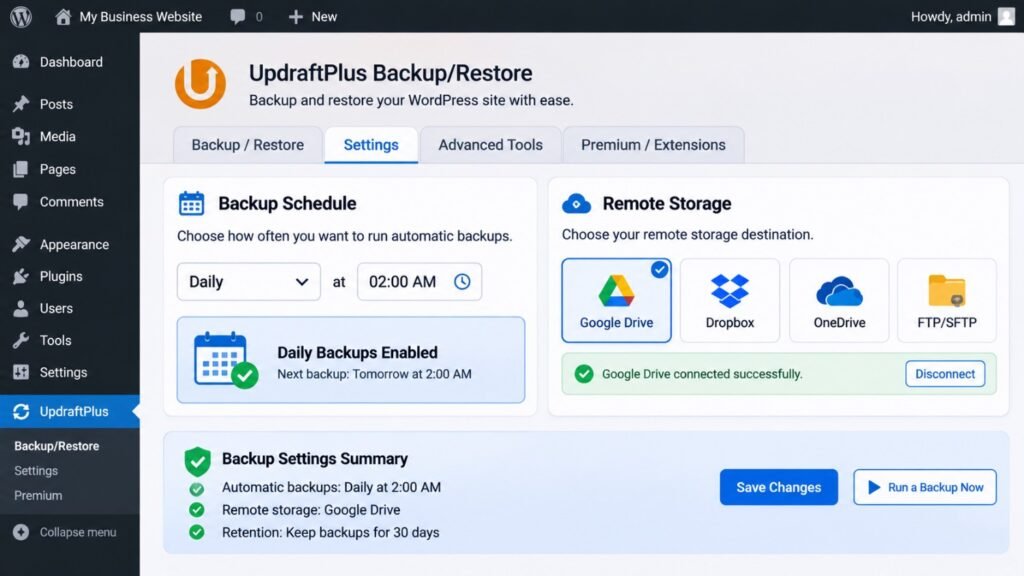
Security isn’t only about blocking attacks. It’s about recovering when something slips through. A good backup is your undo button.
Here’s the 3-2-1 rule I recommend:
- 3 copies of your data
- 2 different storage types
- 1 copy stored off-site
What Should Your Backup Include?
- Full database
- The wp-content folder (themes, plugins, uploads)
- Your wp-config.php and .htaccess files
How Often Should You Back Up?
It depends on how often your site changes:
- Blog or brochure site: daily
- WooCommerce store: hourly or real-time
- Membership or LMS site: hourly or real-time
If you run courses, this matters a lot. Student progress data changes constantly. Our guide to custom e-learning platform development covers how to plan for that.
Critical mistake I see weekly: storing backups on the same server. If the server dies or gets infected, your backups go with it. Send them to Amazon S3, Google Drive, or Dropbox.
And please, test your restore. A backup you’ve never restored is just a hope.
[
How to Prevent WordPress Hacking With a Simple Routine
Here’s what actually happened with most clients who stayed safe. They didn’t use magic tools. They followed a rhythm.
Weekly (15 minutes)
- Review pending updates
- Check your security plugin alerts
- Confirm the latest backup completed
Monthly (30 minutes)
- Delete unused plugins and themes
- Review user accounts
- Scan for malware manually
Quarterly (1 hour)
- Restore a backup on a staging site
- Re-check file permissions
- Review hosting and firewall settings
It’s like brushing your teeth. Boring. Effective. Cheaper than the dentist.
Pro tip: Set a recurring Monday calendar reminder. Consistency beats intensity.
How to Fix a Hacked WordPress Website (Step-by-Step)
Take a breath. It’s stressful, but it’s fixable. Here’s the process, in order.
Signs Your Site Is Hacked
- Strange redirects to other websites
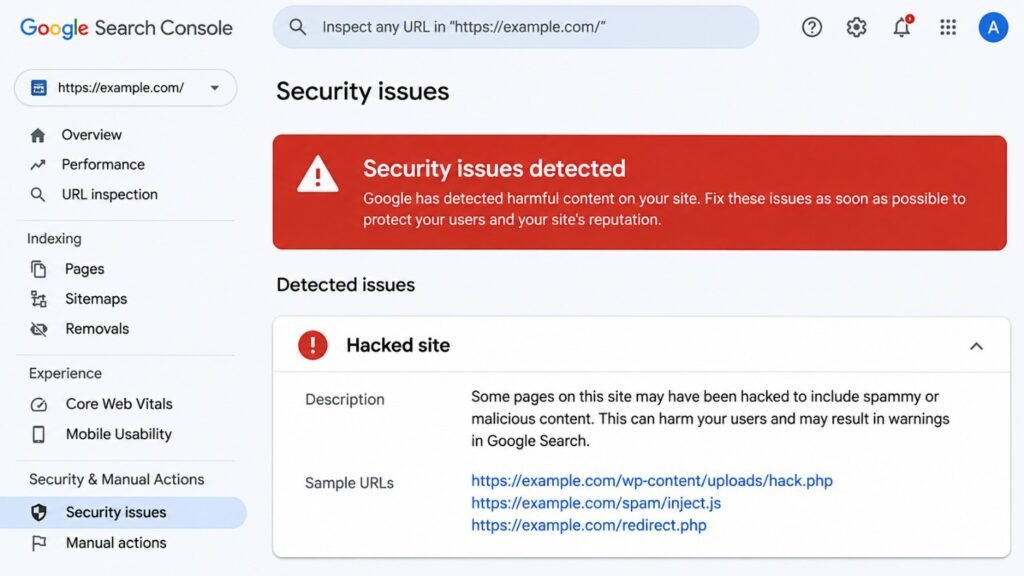
- Google warning: “This site may be hacked”
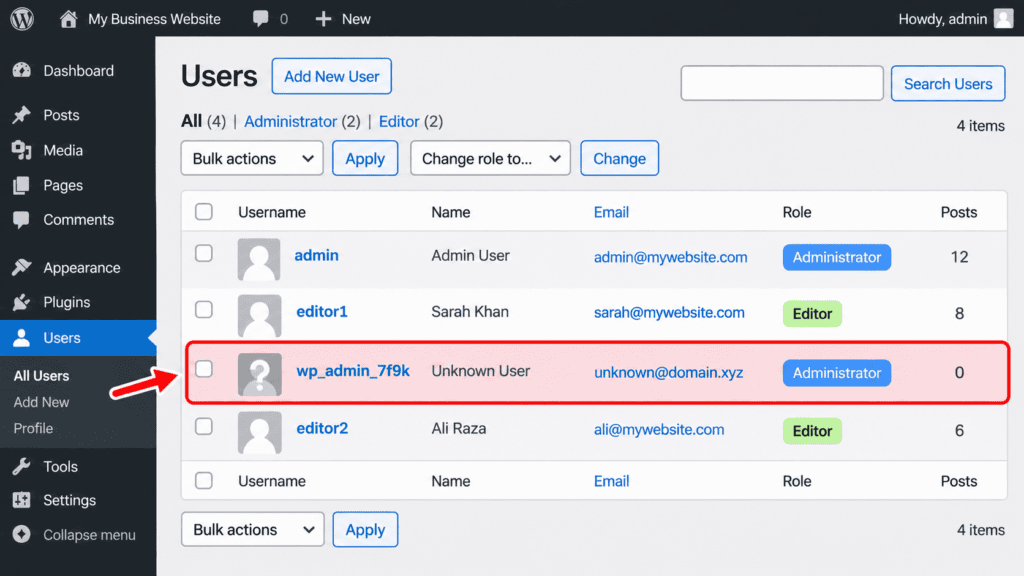
- New admin users you didn’t create
- Sudden traffic drops or spam pages in search results
- Your host suspends the account
The 10-Step Recovery Plan
- Stay calm and take a snapshot. Back up the infected site for evidence.
- Put the site in maintenance mode. Protect your visitors.
- Contact your host. Many US hosts help with cleanup or restoration.
- Change every password. That means WordPress, hosting, FTP, database, and email.
- Scan the site. Use a malware scanner to find infected files.
- Restore a clean backup from before the infection date, if you have one.
- Reinstall WordPress core and all plugins from fresh, trusted downloads.
- Check for backdoors. Look for unknown admins and odd files in wp-content/uploads.
- Refresh security keys and salts. This forces all sessions to log out.
- Request a Google review through Search Console if you were flagged.
A Real Example: The Florida Online Store Hit in Two Hours
Here’s what actually happened to a Miami-based online boutique. The owner used a “free” premium theme from a sketchy download site. It hid a backdoor for eight months.
One Friday night, attackers injected card-skimming code into the checkout page. The store processed roughly 260 orders before a customer complained.
The recovery looked like this:
- Restored a clean backup from 12 days earlier
- Replaced the theme with a licensed one at $59
- Notified affected customers and their payment processor
- Total cost: about $2,400 and three stressful weeks
The lesson hurts, but it’s simple. Never use nulled themes. The “free” price tag always comes back to bite.
Should You Secure WordPress Yourself or Hire an Expert?
Fair question. Here’s an honest breakdown.
| DIY Security | Managed / Expert Security | |
|---|---|---|
| Pros | Low cost, full control, great learning | Faster response, 24/7 monitoring, less stress |
| Cons | Time-consuming, easy to miss updates | Higher monthly cost |
| Best for | Personal blogs, small hobby sites | Clinics, stores, law firms, membership sites |
If your site collects payments or patient data, lean toward expert help. The risk is just too high.
What Security Rules Apply to US Websites?
American businesses face extra pressure. A hack isn’t only embarrassing. It can be a legal issue.
- HIPAA: Medical and dental practices must protect patient information. A hacked intake form can trigger breach reporting.
- PCI DSS: Any site taking card payments must follow payment security standards.
- State privacy laws: California’s CCPA/CPRA and similar laws in Texas, Virginia, and Colorado add notice and protection duties.
- State breach notification laws: Every US state has one. Timelines and rules differ.
- FTC rules: The FTC can act when businesses fail to protect customer data.
I’m not a lawyer, so talk to one for specifics. But you should know this: “I didn’t know” isn’t a defense.
If your clinic uses forms or chat on its site, think about where that data goes. This applies to AI-powered chatbot solutions too. Any chatbot that touches patient or customer data needs proper security and vendor agreements.
Is WordPress safe to use in 2027?
Yes, the core software is well maintained. In 2025, core had only a handful of reported flaws, while plugins had thousands. The risk comes from how you manage it. A well-maintained WordPress site can be very secure.
Can a hacker get in even if my site has no login page visible?
Yes. Many attacks exploit plugin flaws that need no login at all. Hiding your login URL helps against bots, but it won’t stop an unpatched plugin exploit. Think of it as a curtain, not a lock.
Does a security plugin slow down my site?
Some do, especially scanners that run on your own server. Cloud-based firewalls usually add less load. Schedule heavy scans for off-peak hours, like 3 a.m. Eastern.
Are premium plugins safer than free ones?
Not automatically. Patchstack’s research has flagged premium marketplace components as a visibility gap. Safety depends on how actively the developer patches. Check the “last updated” date and support activity before installing anything.
Do AI-generated plugins create security risks?
They can. Patchstack’s 2026 report called out “vibe coding,” where code is generated and shipped without a proper audit. If someone built your custom plugin with AI, get a human review before it goes live.
How fast should I update after a security patch is released?
Within 24 hours for critical fixes, and sooner when you can. With a median five-hour exploitation window on high-risk flaws, waiting a week is gambling. Virtual patching can buy you time.
How do I know if my backup is actually clean?
Check the backup date against the first sign of trouble. Restore it to a staging site and scan it. Many owners restore a backup that already contained the hidden backdoor.
Will being hacked hurt my Google rankings?
Often, yes. Google can show warnings or remove infected pages. Recovery usually takes days to weeks after cleanup. Fast action limits the damage.
Final Thoughts: Your Site Deserves a Fighting Chance
Let’s recap what we covered. Most WordPress hacks come from outdated plugins, weak logins, and shady downloads. All three are fixable.
If you remember only five things, remember these:
- Update fast. Treat patches like urgent mail.
- Delete unused plugins. Less code, less risk.
- Turn on 2FA. It takes five minutes.
- Use a firewall. Block threats before they arrive.
- Back up off-site. And test your restore.
You don’t have to be perfect. You just have to be harder to hack than the next site. Bots move on to easier targets.
Start today. Open your dashboard, click update, and delete one plugin you don’t use. That’s progress.
Your business, your patients, and your customers are counting on you. You’ve got this.
Confused between AI tools? Try our free comparison tool: 👇
Need custom AI automation, chatbot, or integration for your business, medical practice, dental clinic, or app? 👇